If you’ve ever opened an old session in Ableton Live and seen missing media, offline samples, or broken clips — you’re not alone.
Modern music production workflows move fast. Files get pulled from desktops, external drives, downloads folders, and collaborators’ systems. Over time, sessions break. Ableton Live includes a built-in feature designed to prevent this: Collect All and Save.If you’re not using it properly, you’re risking your work.
What Is Collect All and Save?
Collect All and Save gathers every external file used in your session and copies it into your project folder.
This includes imported audio, dragged-in samples, frozen tracks, and referenced media.
When used correctly, your session becomes fully self-contained.
No missing samples. No broken paths.
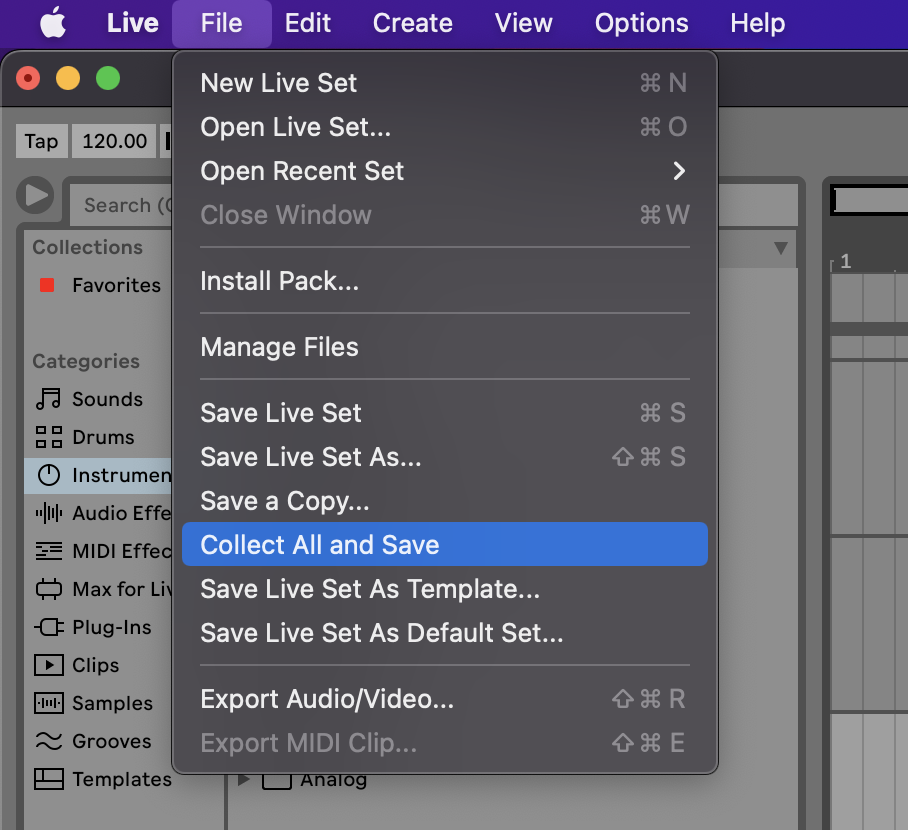
Open your session in Ableton Live.
Go to the top menu and click File → Collect All and Save.
In the popup, check:
Files from outside the project
Files from other projects
(Optional) Factory packs
(Optional) User library
Click OK.
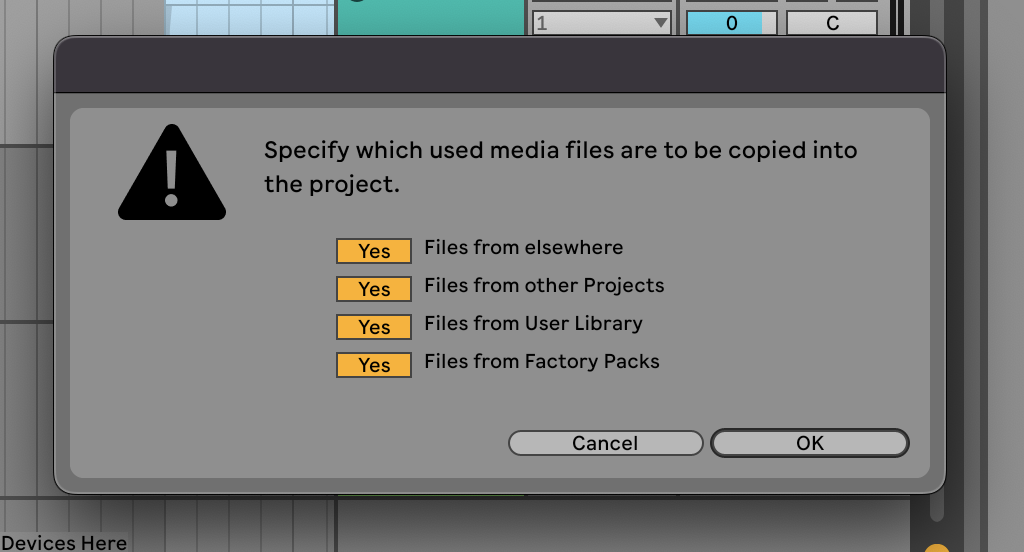
Auto Scan
Click ok to auto scan. If not files are found you will have to find them by hand.
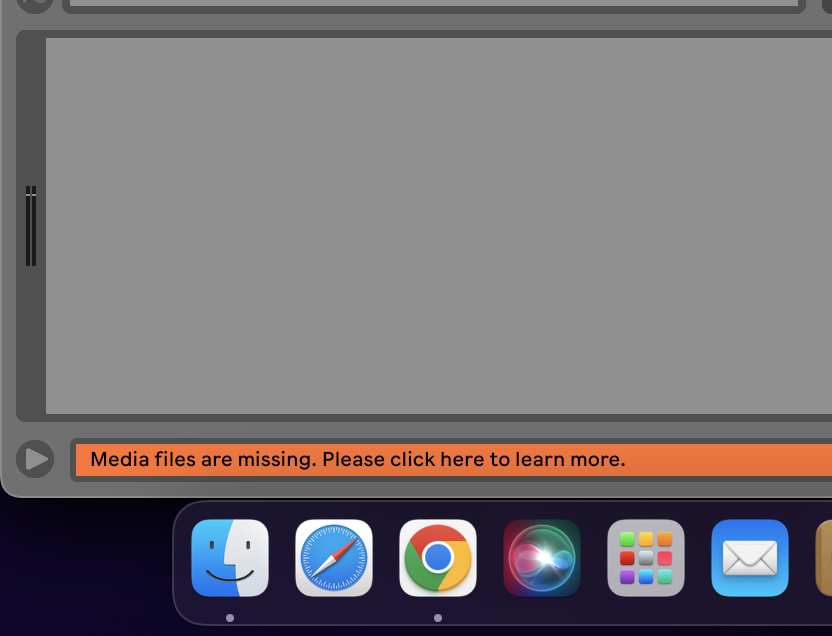
How to see missing files in your Live Set
Open the project
Click the orange missing files bar
Run Automatic Search or find in your finder
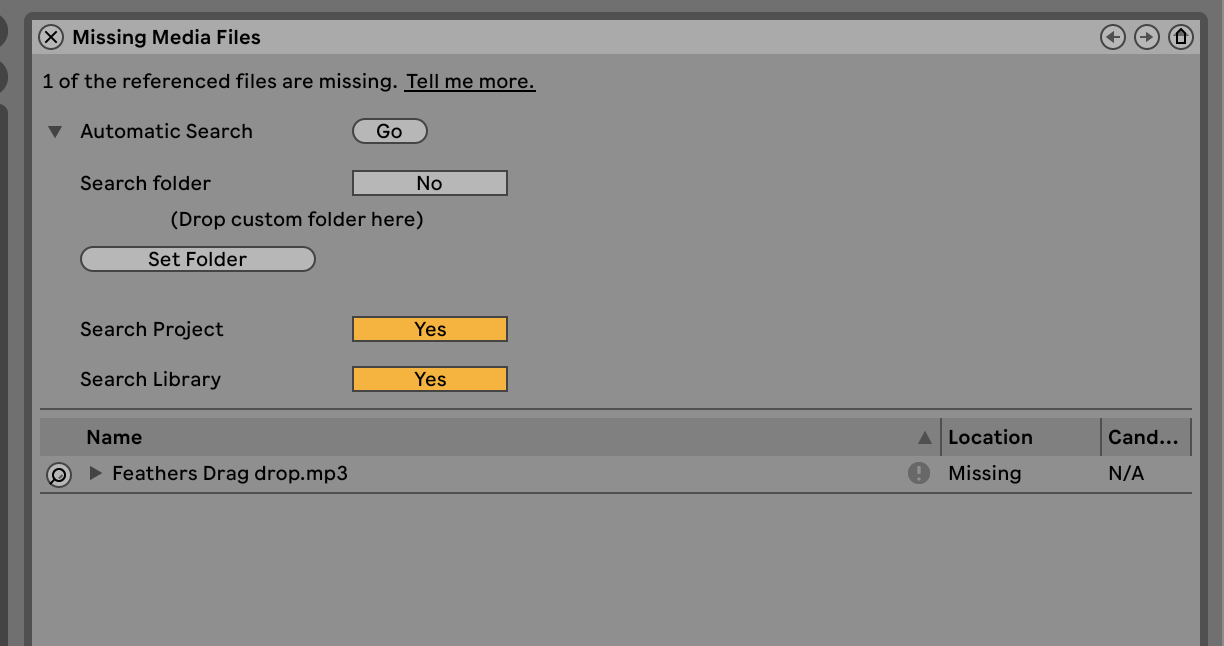
Manual Locate
Select the folder where files may exist with set folder button
Note: you can drag and drop your missing files if found onto the missing audio file under “Name”. In this case I would drag my mp3 file onto “Feathers Drag drop.mp3”.
Why We Built Daw Link
At Software Human, we work inside real studios.
We’ve seen how sessions evolve across systems, drives, and collaborators — and how easily they break.
DAW Link scans your system and reconnects files intelligently, even after they’ve been moved or renamed.
Built for producers, engineers, and studios who need reliability.
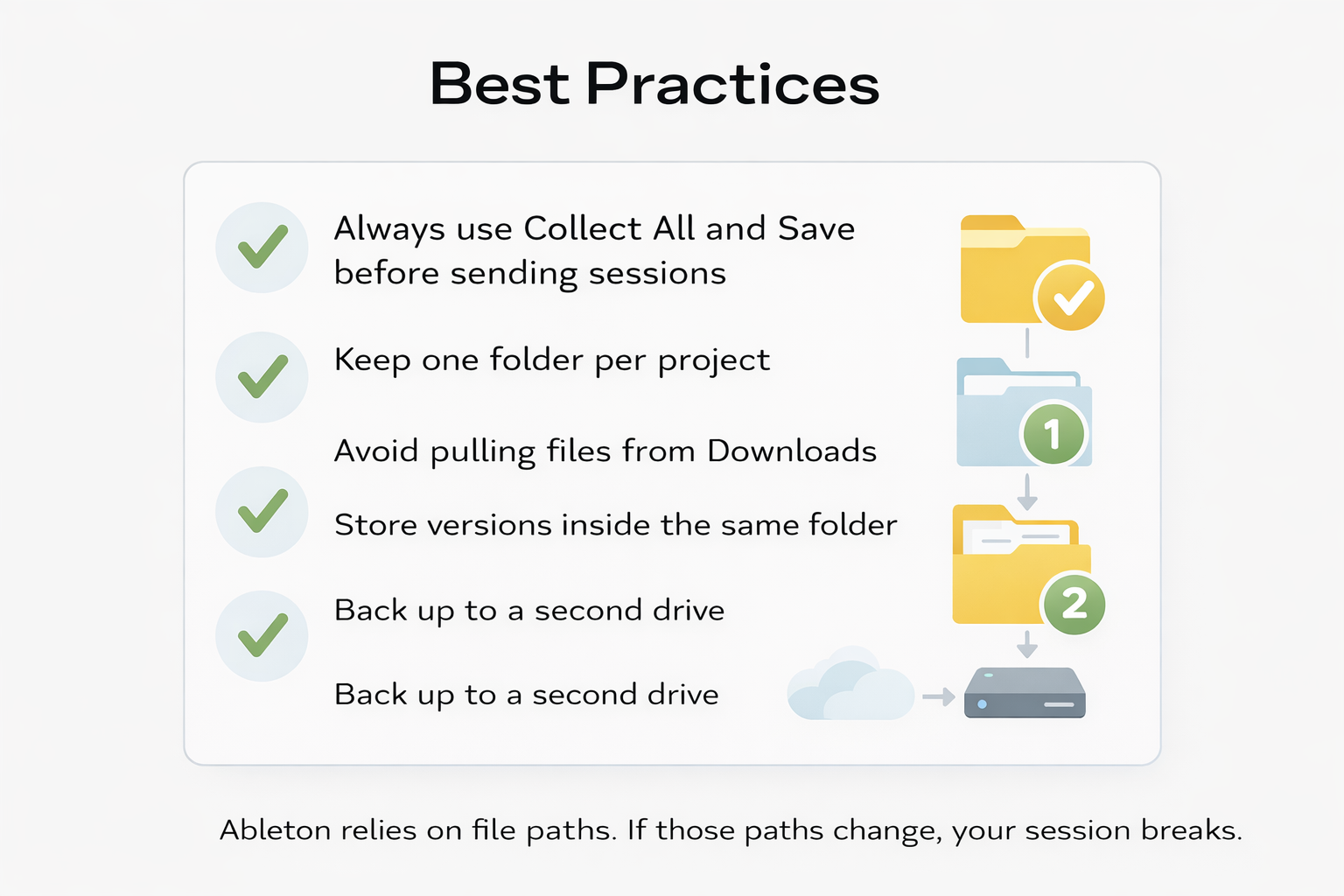
Best Practices
Always use Collect All and Save before sending sessions
Keep one folder per project
Avoid pulling files from Downloads
Store versions inside the same folder
Back up to a second drive
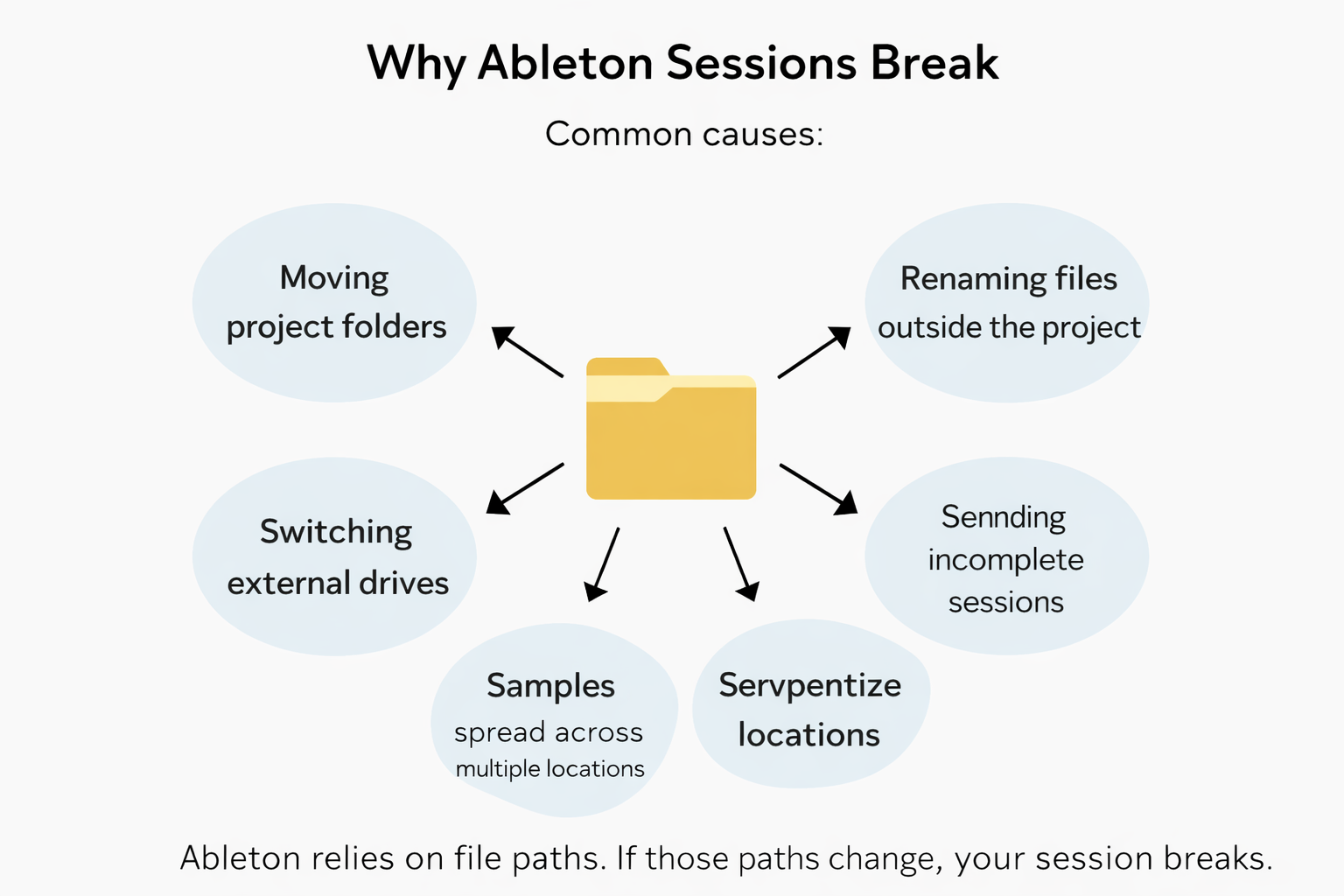
Why Sessions Break
Even experienced producers run into this.
Common causes:
Moving project folders
Renaming files outside the project
Switching external drives
Sending incomplete sessions
Samples spread across multiple locations
Ableton relies on file paths.
If those paths change, your session breaks.
Final Thoughts
Collect All and Save is essential.
But real-world workflows require more than good habits they require systems that hold up over time.
Session integrity is part of the craft.
